Nova Design System Integration Guide for Blazor
The Nova Design System provides reusable web components that work seamlessly with Blazor, including pre-styled components and a token-driven Tailwind setup for customization.
This guide explains how to integrate and use Nova components in a Blazor project, where components use the Nv prefix for their tags, such as NvButton and NvFieldtext.
Table of Contents
- Nova Design System Integration Guide for Blazor
Requirements
| Requirement | Minimum version |
|---|---|
| Node.js | 24.22.1 (pinned in .nvmrc) |
| .NET runtime | 8.0.33, 9.0.22, or 10.0.14 or later in the same major (package multi-targets net8.0 and net10.0) |
| .NET SDK for repository builds | Stable 10.0.403 or later in .NET 10, declared in global.json |
| npm | 11.16.0 (repository builds) |
Node 24.22.1 or later in the Node 24 line required for repository builds
The
@nova-design-system/nova-basenpm package (required by this NuGet) depends onstyle-dictionaryv5, which requires Node 22+. Nova pins Node 24.22.1 to include the October 2026 security fixes. Contributors and CI environments should use.nvmrc. Blazor consumers should also verify that their build machines use a supported, security-patched Node version.
Installation
IMPORTANT
Keep NuGet and NPM versions in sync. This package relies on matching versions between the NuGet package and the NPM base package@nova-design-system/nova-baseused by the Tailwind pipeline and static assets. The build will emit a warning whenever these versions do not match.
-
Add the NuGet Package Install the Nova Design System NuGet package in your Blazor project:
dotnet add package Nova.Design.System.BlazorOr add it manually to your
.csprojfile:<PackageReference Include="Nova.Design.System.Blazor" Version="x.y.z" /> -
Restore NuGet Packages
dotnet restore -
Verify the Package Ensure the package is correctly installed by checking the
Dependenciessection in your project or theobjfolder.
Setting up Tailwind
This guide is written for Tailwind v4.
1. Introduction
Nova for Blazor requires Tailwind CSS for styling. Nova includes a CSS-only Tailwind plugin that maps design tokens to Tailwind utilities. Using Tailwind utility classes in your Blazor components provides:
- Better hot reload compatibility
- Modern styling standards
- Consistent design system integration
Nova ships design tokens as CSS variables with two theme options: spark.css and ocean.css. The CSS-only plugin wires those tokens into Tailwind's theme scales and exposes utilities that reference them at runtime.
IMPORTANT
Import exactly one token theme CSS file (spark or ocean). Do not import legacy utilities when using Tailwind (e.g.,nova-utils.css).
2. Installing Node.js
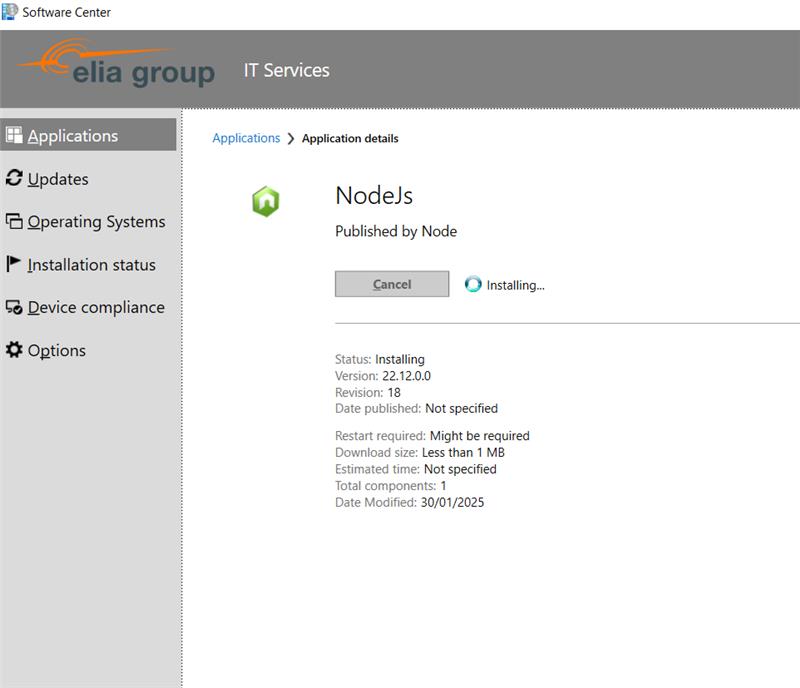
Node.js is required for npm to work. For Developers Using Elia Virtual Machines
- Open the Software Center on your VM.
- Search for Node.js and install the proposed version.
3. Initialize npm
Initialize npm in your project directory (where your .csproj file is located):
npm init -y
This creates a package.json file to manage npm dependencies.
4. Install Tailwind CSS
In your project directory:
npm install tailwindcss@4.2.2 @tailwindcss/cli@4.2.2 @nova-design-system/nova-base@<version>
Replace <version> with your Nova.Design.System.Blazor NuGet version (check your .csproj). Example:
npm install tailwindcss@4.2.2 @tailwindcss/cli@4.2.2 @nova-design-system/nova-base@3.0.0
Example package.json dependencies:
{
"dependencies": {
"@nova-design-system/nova-base": "^3.0.0",
"@tailwindcss/cli": "4.2.2",
"tailwindcss": "4.2.2"
}
}
On some developer VMs, you may need:
npm config set strict-ssl false
5. Create a CSS Source File
Create Styles/tailwind.css:
@import 'tailwindcss';
@import '@nova-design-system/nova-base/theme/plugin.css';
@import '@nova-design-system/nova-base/dist/css/spark.css';
/* Or import ocean.css instead of spark.css. */
/* Add your custom CSS here */
No tailwind.config file, @config, @plugin, or JavaScript theme import is required. Do not combine theme/plugin.css with nova-utils.css.
6. Add Build Scripts to .csproj
Add Tailwind build/watch targets:
<Project Sdk="Microsoft.NET.Sdk.BlazorWebAssembly">
<!-- Build Tailwind CSS -->
<Target Name="BuildTailwindCSS" BeforeTargets="Build">
<Exec Command="npx @tailwindcss/cli -i ./Styles/tailwind.css -o ./wwwroot/css/tailwind.css" />
</Target>
<!-- Watch Tailwind CSS -->
<Target Name="WatchTailwindCSS" BeforeTargets="Watch">
<Exec Command="npx @tailwindcss/cli -i ./Styles/tailwind.css -o ./wwwroot/css/tailwind.css --watch" />
</Target>
</Project>
Optionally limit to Debug:
<Target Name="BuildTailwindCSS" BeforeTargets="Build" Condition="'$(Configuration)' == 'Debug'">
<Exec Command="npx @tailwindcss/cli -i ./Styles/tailwind.css -o ./wwwroot/css/tailwind.css" />
</Target>
<Target Name="WatchTailwindCSS" BeforeTargets="Watch" Condition="'$(Configuration)' == 'Debug'">
<Exec Command="npx @tailwindcss/cli -i ./Styles/tailwind.css -o ./wwwroot/css/tailwind.css --watch" />
</Target>
7. Reference Tailwind CSS in Your Project
In your host file — wwwroot/index.html (WASM), Components/App.razor (Blazor Web App, .NET 8+), or Pages/_Host.cshtml (legacy Server) — reference the compiled stylesheet. The selected Nova theme is already bundled from Styles/tailwind.css:
<link rel="stylesheet" href="css/tailwind.css" />
Do not include
nova.csswhen using Tailwind. Do not import legacynova-utils.css.
Dark mode:
<body class="dark">
<!-- content -->
</body>
Deprecated JavaScript Configuration
The previous JavaScript theme and plugin remain available for backward compatibility. Do not combine this setup with theme/plugin.css.
Create tailwind.config.ts at the project root:
import type { Config } from 'tailwindcss';
import { novaTailwindTheme } from '@nova-design-system/nova-base/theme';
export default {
theme: novaTailwindTheme,
} satisfies Config;
Then configure Styles/tailwind.css:
@import 'tailwindcss';
@import '@nova-design-system/nova-base/dist/css/spark.css';
@config '../tailwind.config.ts';
@plugin '@nova-design-system/nova-base/theme/plugin';
@custom-variant dark (&:where(.dark, .dark *));
Use ocean.css instead of spark.css when required. Existing projects that load the token theme through _content/Nova.Design.System.Blazor/nova/ can retain that link instead of importing the token file above.
Include Nova JavaScript
Add the required Nova scripts to your host file (see Which File Is My Host File?):
Development:
<script type="module" src="_content/Nova.Design.System.Blazor/nova/native.esm.js"></script>
<script src="_content/Nova.Design.System.Blazor/js/helper.js"></script>
Production:
<script type="module" src="_content/Nova.Design.System.Blazor/nova/native.esm.js"></script>
<script src="_content/Nova.Design.System.Blazor/js/helper.min.js"></script>
Use development versions during development for easier debugging, and minified versions in production for better performance.
See Complete Host File Examples for these tags assembled into a full host file.
Which File Is My Host File?
Nova's stylesheet, scripts, and font link all go into your application's host file — the single HTML document that wraps your whole app. Which file that is depends on your project type:
| Project type | Host file | Blazor script |
|---|---|---|
| Blazor WebAssembly (standalone) | wwwroot/index.html | _framework/blazor.webassembly.js |
| Blazor Web App (.NET 8+, server and/or WASM render modes) | Components/App.razor | _framework/blazor.web.js |
| Blazor Server (.NET 6/7, legacy) | Pages/_Host.cshtml | _framework/blazor.server.js |
Nova's own tags are identical in all three — only the surrounding template and the Blazor script differ.
Complete Host File Examples
The four Nova additions, in every example below, are:
css/tailwind.css— your compiled Tailwind output (contains the Nova theme)nova-fonts-pro.css— the Nova Font Pro stylesheet (see Nova Font Pro Integration)nova/native.esm.js— the Nova web components, loaded as a modulejs/helper.js— the Blazor interop helper (usehelper.min.jsin production)
Blazor WebAssembly — wwwroot/index.html
<!DOCTYPE html>
<html lang="en">
<head>
<meta charset="utf-8" />
<meta name="viewport" content="width=device-width, initial-scale=1.0" />
<title>My Nova App</title>
<base href="/" />
<link rel="stylesheet" href="css/app.css" />
<link rel="icon" type="image/png" href="favicon.png" />
<!-- Nova: compiled Tailwind (includes the selected spark/ocean theme) -->
<link rel="stylesheet" href="css/tailwind.css" />
<!-- Nova: Font Pro (contact the Nova team for the URL) -->
<link rel="stylesheet" href="contact-us-for-URL/nova-fonts-pro.css" />
<!-- Nova: web components + Blazor interop helper -->
<script type="module" src="_content/Nova.Design.System.Blazor/nova/native.esm.js"></script>
<script src="_content/Nova.Design.System.Blazor/js/helper.js"></script>
</head>
<body>
<div id="app">
<svg class="loading-progress">
<circle r="40%" cx="50%" cy="50%" />
<circle r="40%" cx="50%" cy="50%" />
</svg>
<div class="loading-progress-text"></div>
</div>
<div id="blazor-error-ui">
An unhandled error has occurred.
<a href="." class="reload">Reload</a>
<span class="dismiss">🗙</span>
</div>
<script src="_framework/blazor.webassembly.js"></script>
</body>
</html>
A working copy of this file lives at
e2e/apps/blazor-e2e/wwwroot/index.htmlin the Nova repository.
Blazor Web App (.NET 8+) — Components/App.razor
Same Nova tags, wrapped in the Blazor Web App template. Note <HeadOutlet /> and blazor.web.js:
<!DOCTYPE html>
<html lang="en">
<head>
<meta charset="utf-8" />
<meta name="viewport" content="width=device-width, initial-scale=1.0" />
<base href="/" />
<link rel="stylesheet" href="app.css" />
<link rel="icon" type="image/png" href="favicon.png" />
<!-- Nova: compiled Tailwind (includes the selected spark/ocean theme) -->
<link rel="stylesheet" href="css/tailwind.css" />
<!-- Nova: Font Pro (contact the Nova team for the URL) -->
<link rel="stylesheet" href="contact-us-for-URL/nova-fonts-pro.css" />
<!-- Nova: web components + Blazor interop helper -->
<script type="module" src="_content/Nova.Design.System.Blazor/nova/native.esm.js"></script>
<script src="_content/Nova.Design.System.Blazor/js/helper.js"></script>
<HeadOutlet @rendermode="InteractiveServer" />
</head>
<body>
<Routes @rendermode="InteractiveServer" />
<div id="blazor-error-ui">
An unhandled error has occurred.
<a href="." class="reload">Reload</a>
<span class="dismiss">🗙</span>
</div>
<script src="_framework/blazor.web.js"></script>
</body>
</html>
Match
@rendermodeto your application. If you set render modes per-component instead of globally, omit these attributes.
Blazor Server, .NET 6/7 — Pages/_Host.cshtml
@page "/"
@namespace MyApp.Pages
@addTagHelper *, Microsoft.AspNetCore.Mvc.TagHelpers
@{
Layout = null;
}
<!DOCTYPE html>
<html lang="en">
<head>
<meta charset="utf-8" />
<meta name="viewport" content="width=device-width, initial-scale=1.0" />
<base href="~/" />
<link rel="stylesheet" href="css/site.css" />
<!-- Nova: compiled Tailwind (includes the selected spark/ocean theme) -->
<link rel="stylesheet" href="css/tailwind.css" />
<!-- Nova: Font Pro (contact the Nova team for the URL) -->
<link rel="stylesheet" href="contact-us-for-URL/nova-fonts-pro.css" />
<!-- Nova: web components + Blazor interop helper -->
<script type="module" src="_content/Nova.Design.System.Blazor/nova/native.esm.js"></script>
<script src="_content/Nova.Design.System.Blazor/js/helper.js"></script>
<component type="typeof(HeadOutlet)" render-mode="ServerPrerendered" />
</head>
<body>
<component type="typeof(App)" render-mode="ServerPrerendered" />
<div id="blazor-error-ui">
An unhandled error has occurred.
<a href="" class="reload">Reload</a>
<a class="dismiss">🗙</a>
</div>
<script src="_framework/blazor.server.js"></script>
</body>
</html>
Dark mode
Nova's dark theme is driven by a dark class on a root element. Add it to <body> in any of the host files above, or toggle it at runtime:
<body class="dark">
Ordering notes
- Nova's
<script>tags belong in<head>;native.esm.jsmust keeptype="module". helper.jsonly assigns interop functions towindow— it never touches the DOM — so it does not need to wait for<body>. Keep it a plain, non-deferred script in<head>so those functions exist before Blazor's first interop call.- Do not add
defertohelper.js, and do not move it below the Blazor script.blazor.*.jsis not deferred, so it would start before a deferredhelper.jshad run and interop calls would fail. If you do movehelper.jsinto<body>, it must come beforeblazor.*.js. - The Blazor framework script (
blazor.*.js) always goes last, at the end of<body>. - Load
css/tailwind.cssafter your own base stylesheet so Nova utilities can override it. - Do not also link
nova.cssornova-utils.css— the Tailwind build already includes the theme.
Building and upgrading
- Development:
dotnet watch— Tailwind rebuilds on changes. - Production:
dotnet buildordotnet publish— Tailwind CSS included in output.
When upgrading Nova to a new version, it's crucial to keep both NuGet and Nova specific npm packages in sync to ensure proper functionality. After changing versions, run npm install locally to ensure the Tailwind pipeline picks up the correct resources.
Nova Font Pro Integration
IMPORTANT
Nova Fonts is a protected asset and is not included in the Nova Base package. You need to include the Nova Fonts CSS file in your project. To get the Nova Fonts URL, contact us via Teams or see the Nova Design System internal wiki.
Option 1: HTML Link (Recommended)
Add to your host file (wwwroot/index.html, Components/App.razor, or Pages/_Host.cshtml):
<link rel="stylesheet" href="contact-us-for-URL/nova-fonts-pro.css" />
Option 2: Import in Global CSS
In Styles/tailwind.css (or another global CSS):
@import url('contact-us-for-URL/nova-fonts-pro.css');
The font CSS includes font-face definitions and typically applies a body { font-family: ... } rule across your application.
Adding Nova Components in Blazor
Use Nova components directly in your .razor files with Nv tags.
Button Example
<NvButton Type="@NvButton.TypeEnum.button" @onclick="HandleClick">
Click Me
</NvButton>
Input Text Example
<NvFieldtext Label="Name" Placeholder="Enter your name" @bind-Value="user.name" />
Customizing Attributes
<NvButton Type="@NvButton.TypeEnum.button" Emphasis="@NvButton.EmphasisEnum.low" Disabled Danger Fluid Size="@NvButton.SizeEnum.sm" @onclick="HandleClick">
Click Me
</NvButton>
Use Tailwind CSS in Blazor Components
<div class="flex items-center justify-center p-4">
<h1 class="text-3xl font-bold">Hello, Tailwind CSS!</h1>
</div>
Handling Events with EventCallback
<NvButton @onclick="HandleClick">
Click Me
</NvButton>
@code {
private void HandleClick()
{
Console.WriteLine("Button clicked!");
}
}
Passing parameters:
<NvButton @onclick="() => HandleClick(42)">
Click Me
</NvButton>
@code {
private void HandleClick(int param)
{
Console.WriteLine($"Button clicked with param: {param}");
}
}
Two-Way Data Binding
Nova supports two-way data binding using @bind-Value or @bind-Checked for boolean fields.
Text Input
<NvFieldtext Label="Name" Placeholder="Enter your name" @bind-Value="name" />
@code {
private string name;
}
Checkbox
<NvFieldcheckbox Label="I agree to the terms" @bind-Checked="isAgreed" />
@code {
private bool isAgreed;
}
Dropdown
<NvFieldselect Label="Select a fruit" @bind-Value="selectedFruit">
<option value="Apple">Apple</option>
<option value="Banana">Banana</option>
<option value="Cherry">Cherry</option>
</NvFieldselect>
@code {
private string selectedFruit;
}
Custom Styles
To customize Nova components:
- Create a
.cssfile in your project. - Add your custom styles:
NvButton {
--button-background-color: #4CAF50;
}
- Reference it in your HTML:
<link href="css/custom-styles.css" rel="stylesheet" />
Scoped CSS
Use .razor.css files for scoped styles.
Example: MyComponent.razor.css
NvCard {
--card-border-color: #f00;
}
Troubleshooting & FAQ
Q: I get errors running Tailwind build scripts.
A: Ensure Node.js and npm are installed. On VMs with SSL issues, try npm config set strict-ssl false.
Q: How do I know which version of @nova-design-system/nova-base to install?
A: Use the same version as your Nova.Design.System.Blazor NuGet package. Check your .csproj for the version number.
Q: My Nova components are not styled or not working.
A: Ensure Styles/tailwind.css imports exactly one theme (spark.css or ocean.css) and that the compiled Tailwind stylesheet is loaded. Legacy projects may continue loading the theme through a separate _content link. Do not include nova.css in the Tailwind setup.
Q: Components not recognized in my .razor files.
A: Add the following line to your _Imports.razor file:
@using NovaComponents
This makes all Nova components available throughout your project.
Q: My custom styles are not being applied.
A: Make sure your custom CSS loads after Nova theme files and Tailwind. For scoped styles, use .razor.css files and reference the generated .styles.css.
Q: I'm getting build warnings about version mismatches.
A: The build will warn you when NuGet and NPM versions don't match. Align the @nova-design-system/nova-base version in your package.json with the NuGet package version and re-run npm install.
Q: I see call stacks referencing non-existent node_modules paths.
A: This is expected with pre-bundled assets. After running npm install locally with aligned versions, these references should correspond to real local paths.
Q: My changes are not appearing in the browser.
A: Ensure you're referencing the correct compiled CSS file in index.html or _Host.cshtml.
Q: My Nova components are not displaying at all.
A: Confirm the compiled Tailwind CSS and Nova JavaScript files are included in index.html or _Host.cshtml. Ensure the Tailwind source imports exactly one Nova theme (spark.css or ocean.css).
Q: I'm seeing JavaScript errors in the browser console. A: Check browser console for JavaScript errors. Verify correct paths to Nova scripts and ensure Blazor is configured for JavaScript interop.
Q: My custom styles are conflicting with Nova styles.
A: Use scoped CSS to prevent style conflicts. Confirm custom styles use valid CSS variables and make sure your custom CSS is loaded after the Nova stylesheets. For scoped styles, use .razor.css files and reference the generated .styles.css in your HTML.
Additional Resources
For further assistance, contact the Nova Design System team or refer to the official documentation.